Overview
The Payroll Import feature in CrmLeaf allows you to upload payroll-related data in bulk, saving time and avoiding manual errors. You can import:
- Employee data (basic details, salary structure)
- Attendance data (working days, leaves, overtime)
- Pay data (earnings, deductions, taxes)
When to Use
- Onboarding employees in bulk
- Updating monthly attendance before salary processing
- Uploading salary and deduction details during payroll runs
Prerequisites
- Admin or Payroll Manager access
- Payroll Import Template (CSV/XLSX) from CrmLeaf
- Mandatory fields filled correctly (e.g., Employee ID, date, amounts)
Employee Import in CrmLeaf
Overview
The Employee Import option allows you to add or update multiple employee records at once instead of entering them manually. This is especially useful when you’re onboarding a large group of employees, migrating data from another system, or making bulk updates to employee details.
Steps:
- Login to your CrmLeaf account.
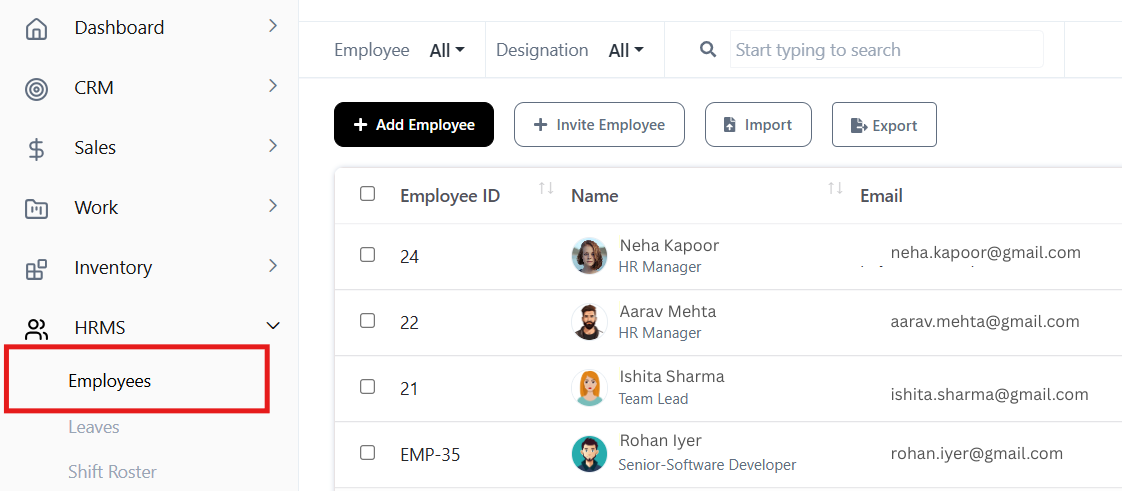
- From the main menu, go to HRMS → Employees.
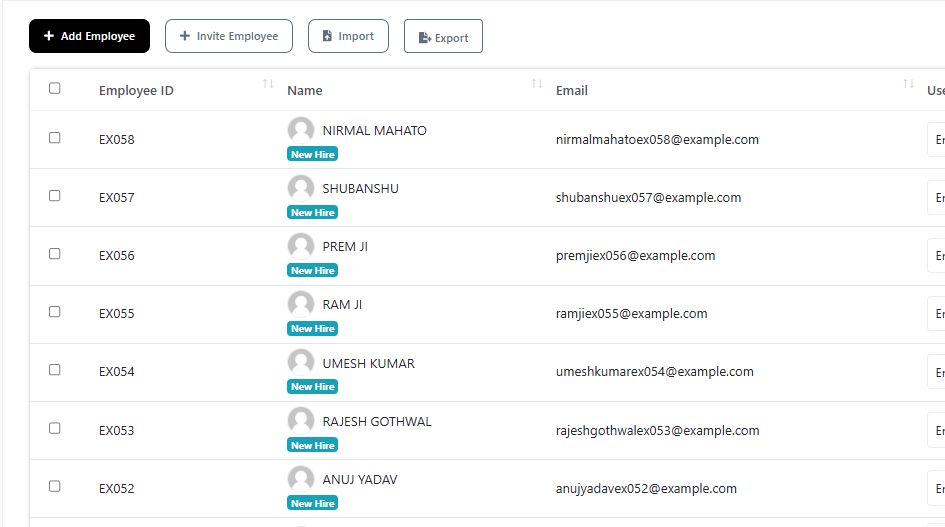
- On the Employee page, look for the Import option.
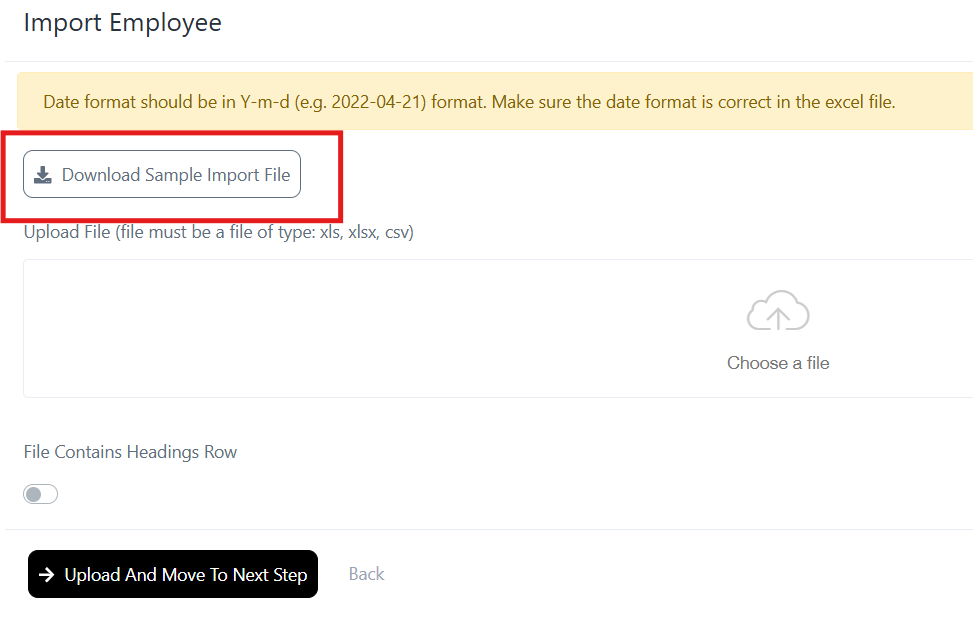
- Click Download Sample File to get the standard CrmLeaf Excel template.
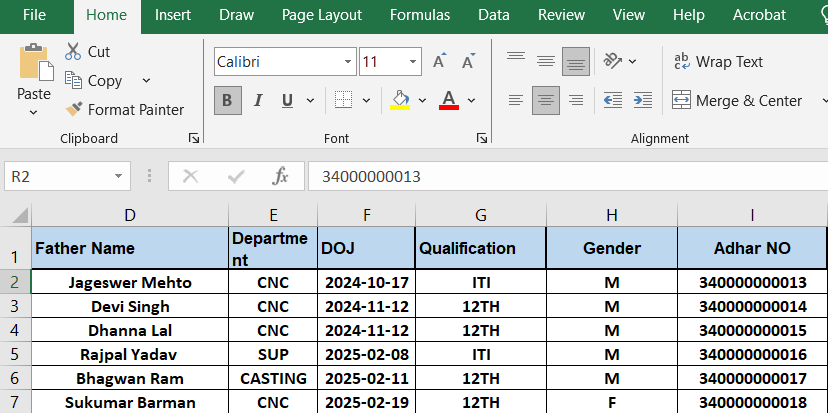
- This file contains the required column headers to ensure your data matches the system format. The column headers include:
- Father name
- Department
- Date of joining
- Qualification
- Gender
- Aadhar number
- Address
- UAN number
- ESIC number
- Bank account number
- IFSC code
- Annual CTC
- Basic pay
- Basic type (fixed/percentage)
- Fill in Employee Details. Open the downloaded Excel file. Enter employee information. Double-check the data for accuracy to avoid errors during import.
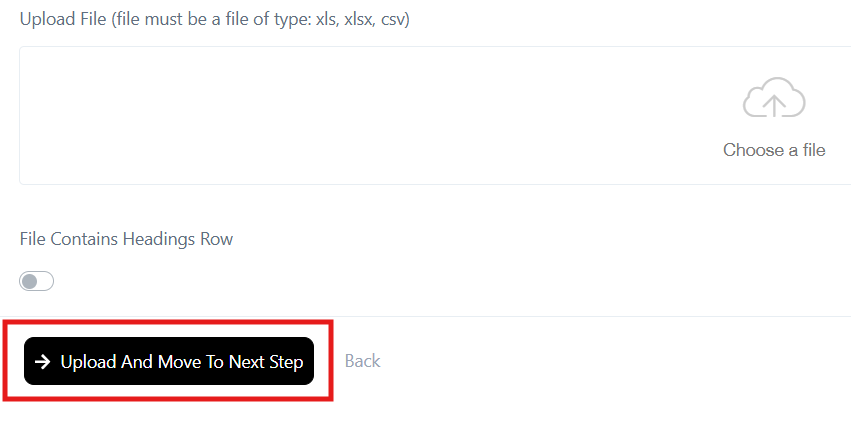
- Then click on Choose a file → select the xls file → then click Upload and Move To Next Step
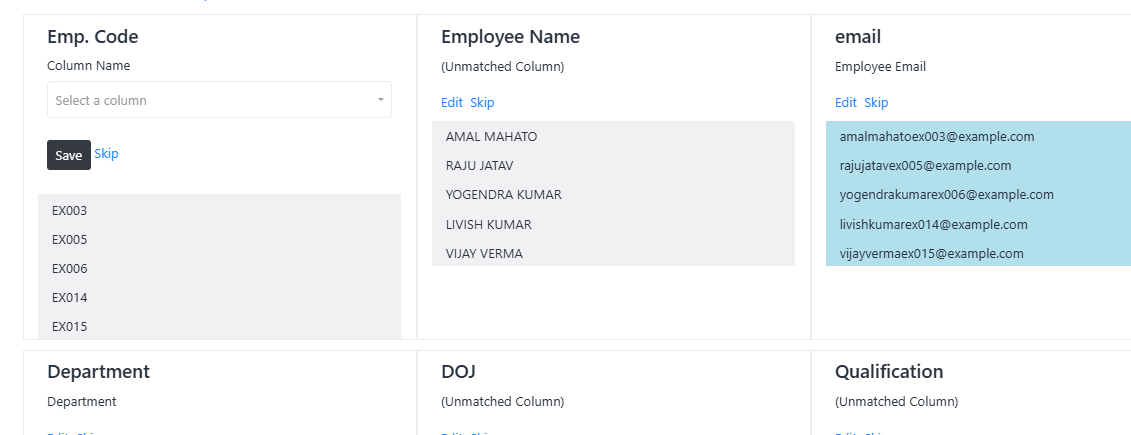
- On the next page, you need to map the field with the data.
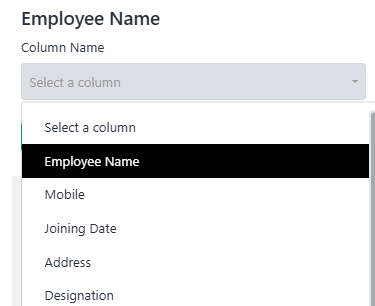
- For example, map the employee name column of the Excel file with the employee name field of the system.
- Next, view the new data entered into the system.